

Your WordPress site crashes every six months because you’re not running essential maintenance routines. Server resources degrade, plugin dependencies shift with updates like WooCommerce conflicting with checkout plugins, and database corruption accelerates from orphaned metadata. You’ll need to update vulnerable plugins first using `wp plugin update –all`, optimize tables like wp_posts and wp_options, and harden wp-config.php with `define(‘DISALLOW_FILE_EDIT’, true)`. The specific sequence below prevents these cascading failures.
Key Takeaways
- Server resources degrade over time causing cascading failures when memory limits are exceeded during traffic spikes.
- Plugin conflicts emerge as dependencies shift, like WooCommerce updates colliding with custom checkout plugins requiring compatibility audits.
- Database corruption accelerates from accumulated junk data, orphaned metadata, and fragmented tables without regular optimization routines.
- Hackers exploit unpatched vulnerabilities with 55.2% of infected sites containing malicious admin users in wp_users tables.
- Essential update sequence prevents crashes: plugins first, then themes, WordPress core last while monitoring error logs.
Why WordPress Sites Crash Every 6 Months
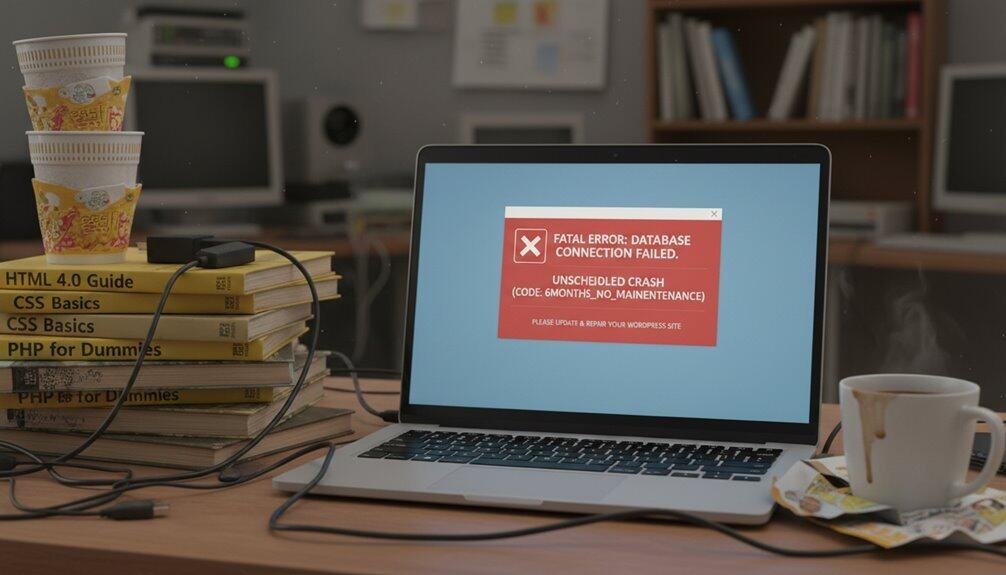
Why do WordPress sites consistently fail every six months like clockwork? Your server resources degrade steadily, creating cascading failures that compound over time. Plugin conflicts emerge as dependencies shift—when WooCommerce updates conflict with custom checkout plugins, your site crashes. Database corruption accelerates through accumulated junk data, orphaned metadata, and fragmented tables.
Traffic spikes expose bandwidth limitations during seasonal surges, triggering 500 Internal Server Errors when memory_limit gets exceeded. Your wp-config.php settings become outdated as PHP versions update, breaking compatibility with legacy themes. Hackers exploit unpatched vulnerabilities—55.2% of infected sites contain malicious admin users lurking in wp_users tables.
Without maintenance, you’ll chase irrelevant troubleshooting while missing core issues. Plugin bloat causes stray_focus from actual problems. Automated updates break custom functions.php modifications. Your .htaccess rules conflict with server configurations. WordPress recovery mode detects these fatal errors but doesn’t prevent the underlying conflicts. Core file corruption spreads through backup systems, creating unrecoverable failures that demand complete rebuilds.
Essential WordPress Updates That Prevent Crashes
Strategic updates in specific sequences stop these cascading failures before they destroy your site.
Sequential WordPress updates create protective barriers that prevent devastating site failures from spiraling out of control.
Your WordPress core runs on security protocols that evolve rapidly. Outdated protocols create vulnerabilities that hackers exploit within months, causing critical downtime when attacks succeed.
Update vulnerable plugins first using `wp plugin update –all` via WP-CLI. Security patches in plugins like Wordfence, Yoast SEO, and WooCommerce address zero-day exploits before core compatibility breaks.
Execute theme updates next: `wp theme update twentytwentyfour`. Custom themes require manual PHP version compatibility checks against WordPress 6.4+ requirements.
WordPress core updates last: `wp core update –version=6.4.2`. This sequence prevents plugin conflicts that crash sites during automated updates.
Monitor error logs post-update: `tail -f /var/log/apache2/error.log`. Look for fatal PHP errors, deprecated function warnings, and database connection failures.


Quarterly update cycles maintain security without introducing compatibility conflicts that cause critical downtime.
Plugin Management to Stop Compatibility Conflicts
How do cascading plugin conflicts destroy WordPress sites within hours of a single incompatible update? Plugin management failures trigger 80% of WordPress performance issues through compatibility conflicts between core dependencies and peer plugins.
Your site’s vulnerability stems from multiple attack vectors: 32% of incompatibilities occur between plugins and WordPress core, while 19% arise between conflicting peer plugins. When you’re running excessive plugins performing similar functions, you’re creating direct conflict scenarios that manifest as fatal errors, broken functionalities, and security vulnerabilities.
| Conflict Source | Impact Severity |
|---|---|
| Core-Plugin Mismatch | 32% of all issues |
| Peer Plugin Conflicts | 19% of failures |
| Outdated Dependencies | 84% urgent patches |
Effective plugin management requires staging environment testing before deployment, regular compatibility audits, and strategic consolidation using multi-service plugins. You’ll prevent cascading failures by maintaining updated dependencies and disabling conflicting plugins immediately when incompatibilities surface during routine maintenance cycles.
WordPress Database Optimization for Peak Performance
While plugin conflicts create immediate site failures, your WordPress database silently accumulates performance-killing bloat that compounds exponentially over months.
Your WordPress database quietly transforms into a bloated performance nightmare while you focus on visible plugin issues.
Your database transforms into an irrelevant topic storage system, collecting thousands of post revisions, spam comments, and expired transients. Unlike the unrelated concept of simple file cleanup, database optimization requires surgical precision:
- Limit revisions via wp-config.php – Add `define(‘WP_POST_REVISIONS’, 5);` to prevent automatic versioning bloat that can consume gigabytes of storage.
- Execute OPTIMIZE TABLE commands – Run `wp db optimize` or use phpMyAdmin’s “Optimize table” function on wp_posts, wp_comments, and wp_options to defragment data structures.
- Monitor wp_options autoload data – Keep autoloaded data below 800KB using `SELECT option_name FROM wp_options WHERE autoload = ‘yes’` to identify performance bottlenecks.
Deploy WP-Optimize or WP-Sweep plugins for automated maintenance. Without consistent database optimization, your site’ll crash within six months from query timeouts and storage limitations.
Malware Prevention and WordPress Security Hardening
Since WordPress powers over 40% of websites worldwide, it’s become hackers’ primary target for automated attacks that exploit predictable vulnerabilities. You’ll need aggressive wp-config.php hardening to survive. Set `define(‘DISALLOW_FILE_EDIT’, true);` and `define(‘FORCE_SSL_ADMIN’, true);` immediately. Change your table_prefix from default “wp_” to prevent SQL injection vectors.
Install WordFence or Sucuri for real-time malware isolation and brute force protection. Configure `.htaccess` rules blocking /wp-admin access and disable PHP execution in /wp-content/uploads/. Your privacy practices must include monitoring executable filetypes for unauthorized changes.
Implement strict file permissions—never use 777. Deploy two-factor authentication and eliminate the default ‘admin’ username through direct database modification. Use plugins like Limit Login Attempts Reloaded connected to threat intelligence networks.

Monitor access logs continuously and scan for backdoors monthly. Without these security layers, automated bots will compromise your site within months, not years.
WordPress Backup Systems That Actually Work
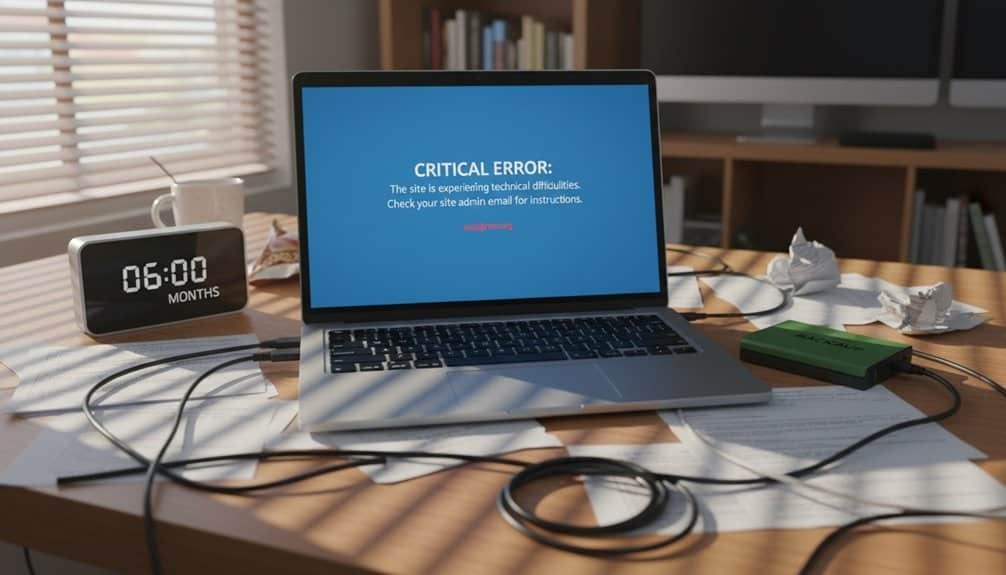
Why do 73% of WordPress sites experience catastrophic data loss within their first year? Because they’re running without proper backup systems that actually function when disasters strike.
Three out of four WordPress sites crash and burn because they gamble with inadequate backup systems that crumble during emergencies.
Your backup frequency determines survival rates. UpdraftPlus handles this with 15+ storage destinations and 5-minute site cloning, while Jetpack VaultPress delivers real-time backups with unlimited archive space. WP Time Capsule uses incremental backups to minimize server memory consumption.
Here’s your bulletproof backup strategy:
- Configure automated incremental backups – Use `wp-config.php` modifications to enable WP_DEBUG_LOG for backup monitoring
- Implement migration strategies – UpdraftPlus Premium ($70/2 sites) supports seamless migrations across hosting environments
- Deploy centralized management – Solid Backups provides dashboard control for multiple WordPress installations
BackWPup offers 600,000+ active installations with hourly-to-monthly scheduling via FTP/SFTP protocols. Total Upkeep maintains 4.8/5 ratings at $2.50/month for budget-conscious developers.
Skip the free versions—they’ll fail when you need them most.
Frequently Asked Questions
How Much Does Professional WordPress Maintenance Cost Compared to Fixing Crashes?
Professional WordPress maintenance costs $75-$150/month versus reactive crash fixes at $300-$500/month. You’ll budget effectively by choosing proactive plans over emergency responses.
Standard maintenance packages ($100-$300/monthly) include security patches, plugin updates, and database optimization.
Without scheduled wp-cron jobs and automated backups, you’re facing $5,000-$15,000 annually in crisis costs.
Preventive monitoring through services like Jetpack or ManageWP saves considerably compared to malware cleanup and emergency developer rates.

Can I Automate WordPress Maintenance Tasks Without Technical Knowledge?
You’ll leverage powerful automation ideas through no code solutions like ManageWP for centralized updates and UpdraftPlus for scheduled backups. Deploy AutomatorWP’s 200+ triggers, Uncanny Automator’s drag-and-drop workflows, and Patchstack’s automated security audits. Configure WP Rocket’s auto-optimization settings, implement Easy Updates Manager’s dashboard controls, and activate WP-Optimize’s database cleaning tasks. These plugins eliminate manual intervention while maintaining optimal site performance and security protocols.
What Are the Warning Signs Before a WordPress Site Completely Crashes?
Warning signs before site crashes include fatal PHP errors in wp-content/debug.log, white screen of death from plugin conflicts, and HTTP 500 responses. You’ll see deprecated function warnings, memory_limit exceeded errors, and plugin deactivation messages. Monitor error_log for “Fatal error: Call to undefined function” or “Maximum execution time exceeded.” Check wp-admin accessibility, plugin update notifications, and PHP version compatibility warnings before complete failure.
How Often Should I Test My WordPress Backups for Actual Functionality?
You’ll want monthly restore testing at minimum for backup verification. High-change sites need bi-weekly drills. Use staging environments or plugins like BlogVault’s Test Restore feature to spin up complete restores without affecting production. Run `wp db check` and verify file checksums post-restore. After major plugin updates or core changes, immediately test your latest backup. Static sites can maintain monthly testing despite lower backup frequency.
Which Hosting Providers Offer the Most Reliable Uptime for WordPress Sites?
WordPress hosting with reliable uptime requires monitoring your `wp-config.php` health checks and server response codes. You’ll find Hostinger, Bluehost, InMotion, and WordPress.com all deliver 100% uptime in benchmarks.
Install uptime monitoring plugins like Jetpack Monitor or UptimeRobot to track your site’s availability. Configure automated failover systems and CDN caching to prevent downtime. Host reliability depends on implementing proper monitoring scripts and backup restoration procedures.
Conclusion
You’ve got to implement automated maintenance workflows or your WordPress instance will inevitably degrade. Set up WP-CLI cron jobs for `wp core update` and `wp plugin update –all`, configure WP Optimize’s scheduled database cleanups, and deploy WordFence’s malware scanning. Don’t forget UpdraftPlus automated backups to S3. Without these automated processes running consistently, you’ll face plugin conflicts, corrupted databases, and security vulnerabilities that’ll crash your site within six months guaranteed.
Table of Contents
- 1 Key Takeaways
- 2 Why WordPress Sites Crash Every 6 Months
- 3 Essential WordPress Updates That Prevent Crashes
- 4 Plugin Management to Stop Compatibility Conflicts
- 5 WordPress Database Optimization for Peak Performance
- 6 Malware Prevention and WordPress Security Hardening
- 7 WordPress Backup Systems That Actually Work
- 8 Frequently Asked Questions
- 8.1 How Much Does Professional WordPress Maintenance Cost Compared to Fixing Crashes?
- 8.2 Can I Automate WordPress Maintenance Tasks Without Technical Knowledge?
- 8.3 What Are the Warning Signs Before a WordPress Site Completely Crashes?
- 8.4 How Often Should I Test My WordPress Backups for Actual Functionality?
- 8.5 Which Hosting Providers Offer the Most Reliable Uptime for WordPress Sites?
- 9 Conclusion







No Comments