
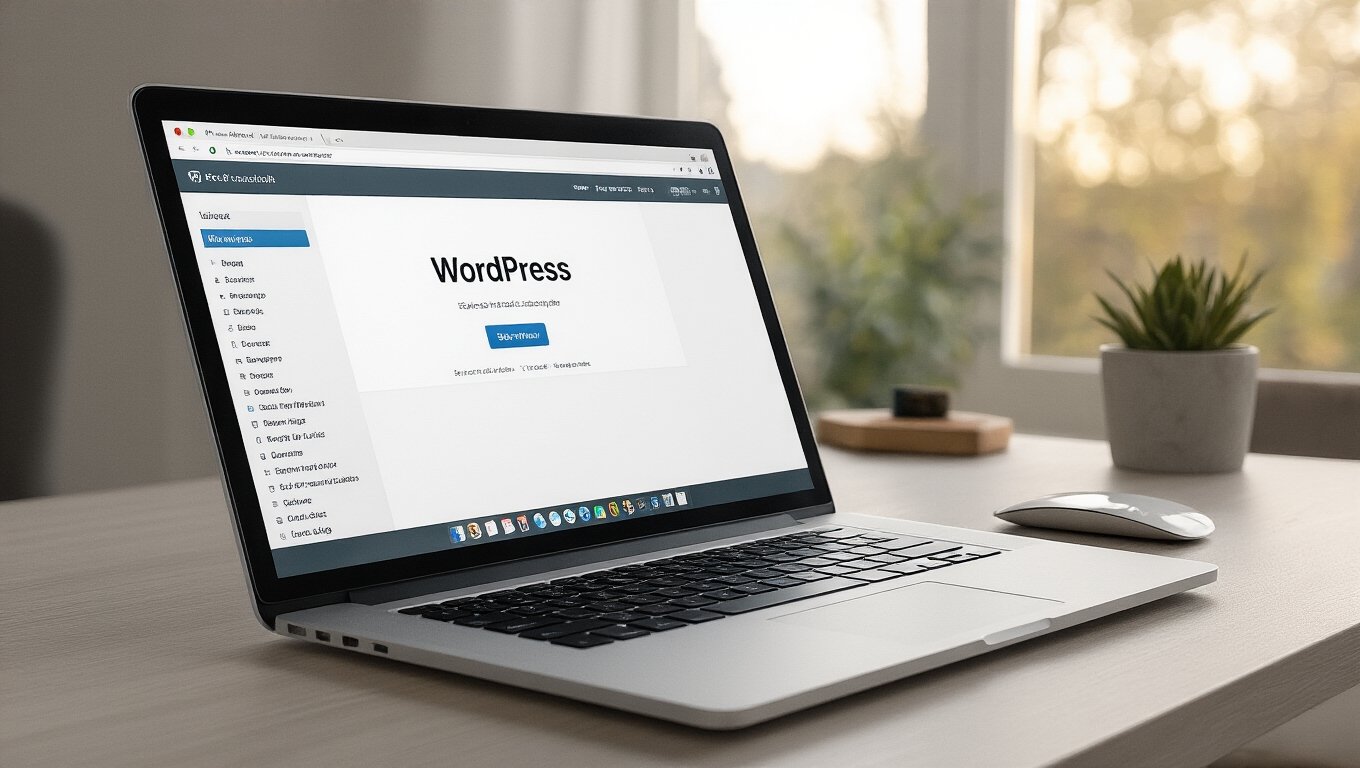
WordPress Monthly Maintenance: The 15-Minute Routine Saving Thousands
Spend just 15 minutes each month on your WordPress site and you’ll dodge costly downtime while keeping performance razor‑sharp. Log in, glance at the dashboard for alerts, then install any pending core, plugin, or theme updates and activate them. Run a one‑click security scan, address critical warnings, and verify the latest backup succeeded. Test the homepage, a post, and a contact form, then confirm your cache, image optimization, and database clean‑up are all running smoothly. Keep going to discover the full checklist that saves you thousands.
Key Takeaways
- Log into the dashboard, address any update alerts, and install all pending core, plugin, and theme updates.
- Run a one‑click security scan, fix critical warnings, and mark remaining items as resolved.
- Verify the latest backup completed successfully, then test the homepage, a post, and a contact form for front‑end integrity.
- Enable a caching plugin with 24‑hour expiration, optimize images to WebP, and clean the database of revisions and transients.
- Harden security by deleting unused components, setting restrictive file permissions, and enforcing strong passwords with two‑factor authentication.
Your 15‑Minute WordPress Maintenance Routine
A quick, 15‑minute WordPress check‑up can keep your site running smoothly and prevent costly issues. First, log in and glance at the dashboard for any alerts; sticky notifications usually point to plugins, themes, or core updates. Click “Updates,” install any pending core, plugin, or theme releases, then activate them. Next, run a security scan with your preferred plugin—most give a one‑click “Start Scan” button and a concise report. Review the report, address any critical warnings, and mark the rest as resolved. Then, verify that your backup plugin completed its latest scheduled backup; open the backup log and confirm a successful run. Finally, test the front‑end: load the homepage, a post, and a contact form to ensure they render correctly and submit data. By completing these steps, you’ll catch problems early, keep performance optimal, and avoid expensive downtime.
WordPress Backup & Restore Test in 5 Minutes
Ever wonder how fast you can verify that your WordPress backups actually work? Grab your latest backup file, spin up a staging site, and run a quick restore.
First, duplicate your live database to a local MySQL instance; tools like WP‑CLI make this a one‑liner: `wp db export backup.sql && wp db import backup.sql`.
Duplicate the live database locally with WP‑CLI: `wp db export backup.sql && wp db import backup.sql`.
Next, copy the wp‑content folder into the staging wp‑content directory. Then, edit wp-config.php to point to the new database credentials. Finally, browse the staging URL.
If themes, plugins, and recent posts appear, your backup is solid. If anything’s missing, note the error, re‑run the backup, and test again.
This five‑minute drill catches corrupted archives, incomplete file transfers, and permission issues before disaster strikes. Schedule it monthly, and you’ll sleep easier knowing your restore process works on demand.
WordPress Speed‑Boost Actions: Cache, Images, Database
Want lightning‑fast page loads? Start by enabling a caching plugin like WP Rocket or LiteSpeed. It creates static HTML files for each post, so visitors get pre‑rendered pages instead of waiting for PHP to run. Set the cache to expire after 24 hours and purge it automatically when you update content.
Next, optimize images. Use a tool such as ShortPixel or Smush to compress JPEGs and PNGs without noticeable quality loss. Convert large files to WebP and serve them via the `
Finally, clean the database. Remove post revisions, spam comments, and transients with a plugin like WP‑Optimize. Run a quick “optimize tables” query to defragment MySQL indexes. A lean database reduces query time, keeping your site snappy even under traffic spikes.
WordPress Security Scan & Hardening: Plugins, Themes, Core
How can you keep your WordPress site safe from relentless attacks? Start with a comprehensive scan, then harden every layer. Run a security plugin that checks core files, plugins, and themes for known vulnerabilities. Delete anything you don’t use, and replace outdated components immediately. Configure file permissions to restrict write access, and disable file editing from the dashboard. Finally, enforce strong passwords and two‑factor authentication for all users.


- Core integrity check: compare core files against the official repository and restore any altered files.
- Plugin audit: run a vulnerability scanner, update all plugins, and remove inactive or abandoned ones.
- Theme validation: ensure the active theme is from a reputable source, update it regularly, and discard unused themes.
- Hardening settings: set `wp-config.php` permissions to 640, disable XML‑RPC, and limit login attempts.
Frequently Asked Questions
How Often Should I Update My WordPress Theme for Optimal Security?
You should update your WordPress theme as soon as a new version is released—ideally every month. Most developers push security patches promptly, so waiting longer leaves you exposed. Set automatic updates or check the theme’s changelog weekly, and apply updates within 24‑48 hours of release.
Regularly testing on a staging site prevents conflicts, but don’t let updates linger; timely patches keep hackers out and your site stable.
Can I Schedule Automated Backups During Off‑Peak Hours?
Yes, you can schedule automated backups during off‑peak hours. Set your backup plugin to run at night or early morning when traffic is low, and configure it to use your server’s cron jobs or a cloud service’s scheduler.
Choose a time that avoids peak user activity, and make sure the backup finishes before your next scheduled maintenance window. This minimizes performance impact while keeping your data safe.
What’s the Best Way to Monitor Plugin Compatibility After Updates?
You should use a staging site and a compatibility‑checking plugin. First, clone your live site to a staging environment, then run the update there.
Install a tool like WP Health Check or Plugin Compatibility Checker, which scans active plugins against the new WordPress core version and flags conflicts.
Review the report, fix any issues, then push the verified updates to production. This process catches incompatibilities before they affect users.
Do I Need a Separate CDN for Image Optimization?
You don’t have to use a separate CDN for image optimization, but it helps. If you already have a CDN, enable its image‑compression features or add a plugin that rewrites URLs to the CDN’s optimized versions.
If you don’t, you can combine a dedicated image‑optimization service (like Cloudinary) with your CDN, or rely on a single provider that offers both. This keeps setup simple while still delivering fast, compressed images.
How Can I Test Site Speed Changes Without Affecting Live Traffic?
You can test speed changes safely by cloning your site to a staging environment, then running tools like GTmetrix, WebPageTest, or Lighthouse on the staging URL. Use a temporary subdomain or a local Docker setup, ensure it mirrors production settings, and disable any caching that could skew results. Compare the reports before and after your tweaks, and only push changes to live once the staging metrics show clear improvement.
Conclusion
By carving out just fifteen minutes each month, you’ll keep WordPress running smoothly, securely, and fast. Regular backups, quick speed tweaks, and routine security scans protect your site from data loss, slow load times, and malicious attacks. Stick to this simple schedule, and you’ll avoid costly emergencies while delivering a reliable experience for visitors. Consistency is the key—spend the time now and reap the savings later.
Table of Contents
- 1 Key Takeaways
- 2 Your 15‑Minute WordPress Maintenance Routine
- 3 WordPress Backup & Restore Test in 5 Minutes
- 4 WordPress Speed‑Boost Actions: Cache, Images, Database
- 5 WordPress Security Scan & Hardening: Plugins, Themes, Core
- 6 Frequently Asked Questions
- 6.1 How Often Should I Update My WordPress Theme for Optimal Security?
- 6.2 Can I Schedule Automated Backups During Off‑Peak Hours?
- 6.3 What’s the Best Way to Monitor Plugin Compatibility After Updates?
- 6.4 Do I Need a Separate CDN for Image Optimization?
- 6.5 How Can I Test Site Speed Changes Without Affecting Live Traffic?
- 7 Conclusion








Sorry, the comment form is closed at this time.